In today’s fast-paced IT environment, maintaining up-to-date backups is crucial for data protection and disaster recovery. Veeam Quick Backup functionality offers a streamlined solution for efficiently backing up individual VMs or groups of VMs. This feature is designed to be quick and user-friendly, making it an excellent tool for system administrators who need to perform ad-hoc backups without disrupting their regular backup schedules.
In this blog post, we’ll delve into the Quick Backup feature, focusing on how to leverage it using PowerShell. This powerful combination allows for automation and customization, enabling you to integrate Quick Backup into your existing workflows seamlessly. Whether you’re looking to protect critical data before performing updates or need a quick safety net during system maintenance, Veeam Quick Backup with PowerShell provides the flexibility and control you need.
Let’s explore how to set up and use Veeam Quick Backup with PowerShell, ensuring your data remains secure with minimal effort.
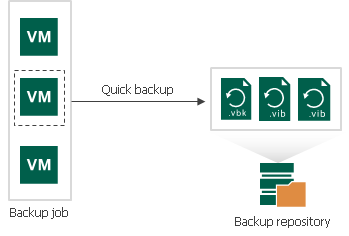
Quick backups enable you to run ad-hoc backups of one or more VMs without running the entire backup job they are part of. This can be particularly useful for backing up a machine before patching, making a major change, or restoring a previous recovery point.
You might be thinking, “But I can just use a VM snapshot for that!” Unlike VM snapshots, quick backups are application-aware1, providing a more reliable recovery point. Additionally, quick backups can help keep a VM updated in preparation for leveraging Veeam’s Instant Recovery capabilities, such as migrating to another platform, like moving from VMware to Hyper-V.
To perform a quick backup, the following requirements must be met:
A backup job processing the VM exists on the backup server.
A full backup file for the VM exists in the backup repository configured in the backup infrastructure.
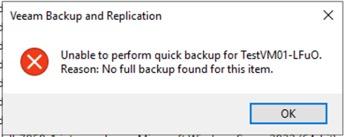
NOTE: You cannot perform a quick backup for VMware Cloud Director VMs processed with VMware Cloud Director jobs2. Attempting this will result in an error in both the UI and PowerShell: Error in PowerShell: Start-VBRQuickBackup : Failed to perform quick backup for VM TestVM01-LFuO. Reason: VM is not added to any job or full backup not found At line:1 char:1 + Start-VBRQuickBackup -VM $VM -Verbose + ~~~~~~~~~~~~~~~~~~~~~~~~~~~~~~~~~~~~~~ + CategoryInfo : InvalidOperation: (:) [Start-VBRQuickBackup], Exception + FullyQualifiedErrorId : QuickBackupErrorId,Veeam.Backup.PowerShell.Cmdlets.StartVBRQuickBackup
Now that we’ve established why you might want to use quick backups and what you need to get started, let’s dive in.
First, select the VM or VMs you want to back up using Find-VBRViEntity for VMware VMs or Find-VBRHvEntity for Hyper-V VMs.
# Single VM called TestVM01$VMs=Find-VBRViEntity-NameTestVM01# Add an additional VM called DC01$VMs+=Find-VBRViEntity-NameDC01# Or Select all VMs starting with DC0$VMs=Find-VBRViEntity-NameDC0*
Next, kick off Start-VBRQuickBackup and pass it the VMs you want to back up.
# Start a quick backup jobStart-VBRQuickBackup-VM$VMs# Start a quick backup job but wait for it finishStart-VBRQuickBackup-VM$VMs-Wait
It’s as easy as that! The -Wait switch is useful if you’re using this as part of a script and don’t want to proceed to the next step, such as installing Windows Updates, until the backup is complete.
Now that you’ve created your backups, how do they fit into your retention policy, and when will they be removed?
When you perform a quick backup, it creates a single VM incremental restore point. Unlike a regular backup that contains data for all VMs in a job, a single VM incremental restore point contains data only for a specific VM.
A single VM restore point is not considered a full-fledged restore point in the backup chain. From the retention policy perspective, a single VM restore point is grouped with a regular restore point following it. When Veeam needs to delete a single VM restore point by retention, it waits for the next regular restore point to expire, effectively increasing the retention by one restore point for some time. After the next regular restore point expires, Veeam will clean up two restore points at once.
For example, if you have a backup job that runs at 3 AM, with a 3-day retention and a synthetic full backup every Sunday and Wednesday:
On Tuesday, you need to apply some patches to a server, so you perform a quick backup at 5 PM. This backup will be grouped with the next regular backup, which will be the Wednesday full backup, and will expire on Sunday instead of Saturday, along with the regular incremental from Tuesday.
Well, there you have it—quick backups using PowerShell. Hopefully, this has shown just how easy it can be to include ad-hoc backups into your workflows, so you don’t have to rely solely on VM snapshots.
For more information, I recommend visiting the Veeam Help Center for the latest updates.
Quick Backup jobs inherit the settings of their parent backup jobs, including all application-aware and file indexing settings. ↩︎
If you process a VMware Cloud Director VM with a regular backup job, you can switch to the Computer view and start the quick backup operation for this VM. ↩︎
Author
Ben Thomas
Ben Thomas is a Senior Solutions Engineer at Veeam with a deep passion for community, virtualization, and cloud technologies.
Prior to joining Veeam, he spent over 13 years at Datacom, where he progressed from the service desk to a senior advisory role specializing in Hybrid and Private Cloud solutions. His long-standing contributions to the tech community have been recognized with both the Microsoft MVP and Veeam Vanguard awards.
It was his passion as a Vanguard that ultimately led him to his role at Veeam, allowing him to work on the technology he advocates for every day. This blog is where Ben shares his hands-on experiences and real-world solutions from his work and home lab.
Manual antivirus exclusions for Veeam infrastructure are tedious and error-prone. This PowerShell script automates the process with role-based detection, PostgreSQL awareness, and idempotent execution.
I’ve built a client-side tool to help analyze Veeam environments for VDC Vault readiness. It processes Healthcheck JSON files locally to identify blockers like version compatibility, encryption requirements, and workload limitations.
Managing Veeam Data Cloud Vault is great, but sometimes you need raw data. I built a Chrome Extension to export tenant details, subscription limits, and storage usage directly to CSV.