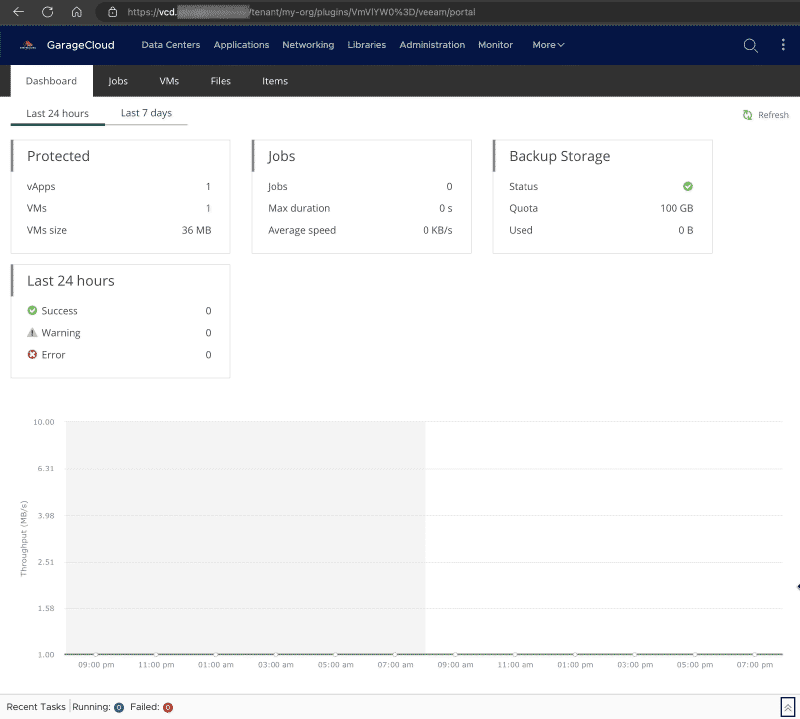
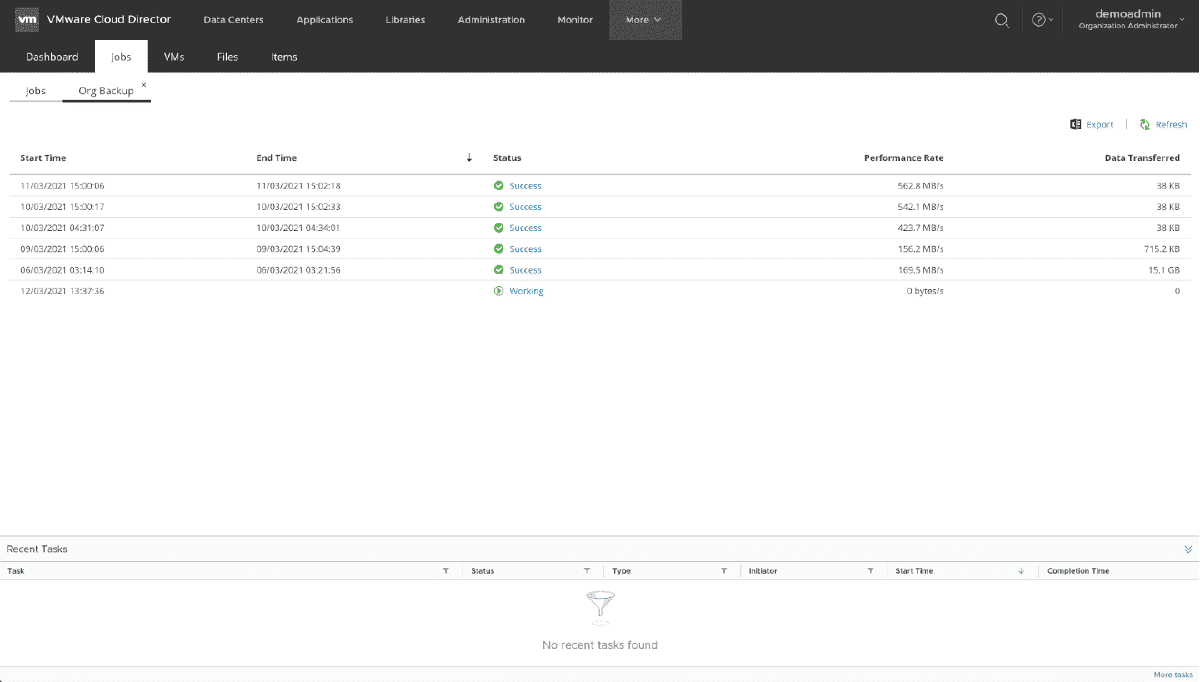
I was setting up Veeam Backup & Replication the other day, testing out the Plug-in for VMware Cloud Director (VCD) to provide Self Service backup and restore, and I hit an unexpected issue when trying to access the extension from the VCD Tenant Portal.
Access to XMLHTTPRequest has been blocked by CORS policy
After some digging, I came across a single post on the Veeam Forums that made reference to the same issue.
The root cause appears to be related to the fact that when this environment was built, and VCD was added to the Veeam B&R Server, VCD was running on an internal URL. It seems Veeam Enterprise Manager uses this URL from Veeam B&R to setup CORS Rules, and so if you are using a different URL internally from Veeam, to what tenants use externally to access VCD, you’ll hit this issue.
Now one option would be to remove and re-add VCD to the Veeam B&R Console, updating it with the same URL tenants will use to access VCD, but this might not be possible for various reasons.
So the option I went with in this environment, was the same solutions provided in the forum post, which involved updating a config file on Veeam Enterprise Manager server.
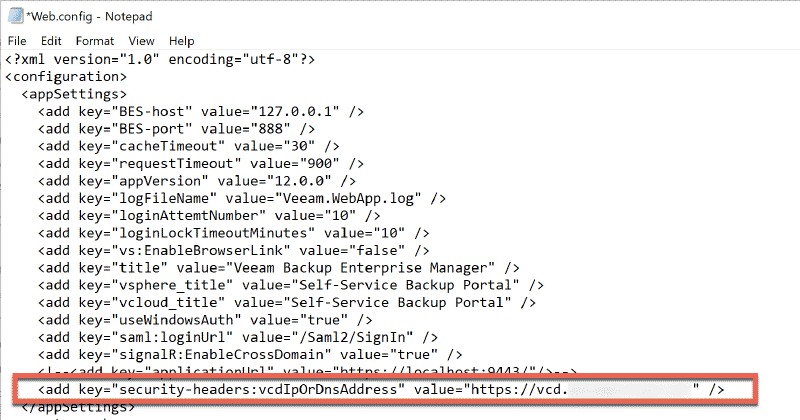
The config file in question can be found here at C:\Program Files\Veeam\Backup and Replication\Enterprise Manager\WebApp\Web.config
In this file, there is a property called vcdIpOrDnsAddress that needs to be uncommented and updated with the URL tenants access VCD on.
<?xml version="1.0" encoding="utf-8"?>
<configuration>
  <appSettings>
    ........
    <add key="title" value="Veeam Backup Enterprise Manager" />
    <add key="vsphere_title" value="Self-Service Backup Portal" />
    <add key="vcloud_title" value="Self-Service Backup Portal" />
    <add key="useWindowsAuth" value="true" />
    <add key="saml:loginUrl" value="/Saml2/SignIn" />
    <add key="signalR:EnableCrossDomain" value="true" />
    <!--<add key="applicationUrl" value="https://localhost:9443/"/>-->
    <!--<add key="security-headers:vcdIpOrDnsAddress" value="" />-->
  </appSettings>
.....
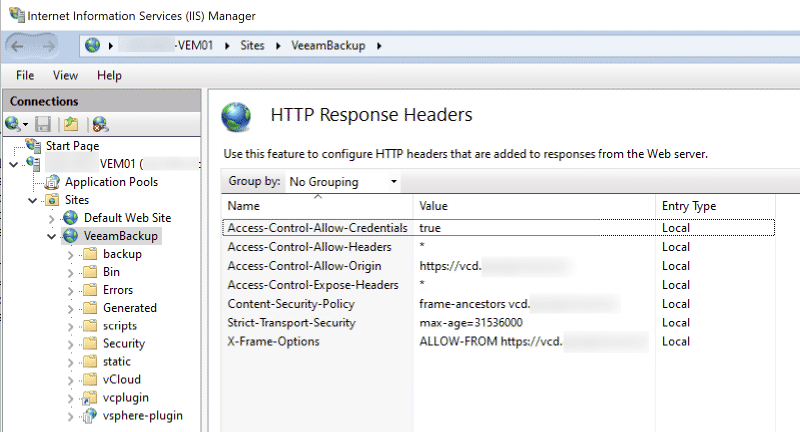
After updating the file, restart IIS for it to pick up the changes. You can config this has worked after in IIS Manager by looking at the HTTP Response Headers on the VeeamBackup Website and confirm the CORS Settings have been configured correctly
Once that’s all setup, the Veeam plugin should be back up and running in VCD and your tenants can start performing their own backups and restores!