
AzureStack is a fantastic appliance, with a massively simplified patch and lifecycle policy thanks to a lot of hard work from Microsoft and the OEMs delivering it. But even with all that, to ensure the best experience when updating AzureStack, you should always apply the available hotfixes in-between updates.
At some point, you may find you’ve fallen more than one update behind and need to catch up. Finding all the right hotfixes and updates requires reading each of the release notes for prerequisites. Or maybe you just want to double check there are no hotfixes you’ve missed since the last time you updated.
To save time and simplify the process, I’ve put together a Powershell function that can show you all the available updates for your release or specific version, including prerequisites.
Bring on the Powershell#
Find-AzSAvailableUpdate is designed to be a simple to use, whether you want to find out the latest update, or what updates you need to get there.

Available Parameters#
- Version: Supply a specific version in the 1.1906.0.30 format, OR
- Release: Supply a release number in the 1906 format
- LatestOnly: Switch that returns the latest update details
- SimpleOutput: Returns results in a string rather than an object.
Examples#
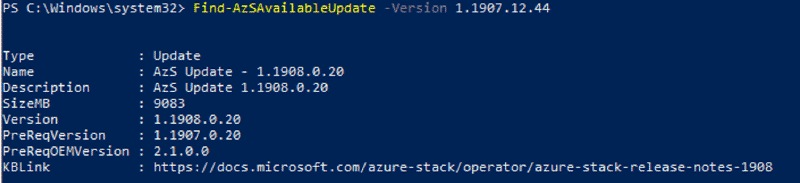
Find-AzSAvailableUpdate -Version 1.1907.12.44This will query for updates to the specific version 1.1907.12.44 and return the results as an array of powershell objects.
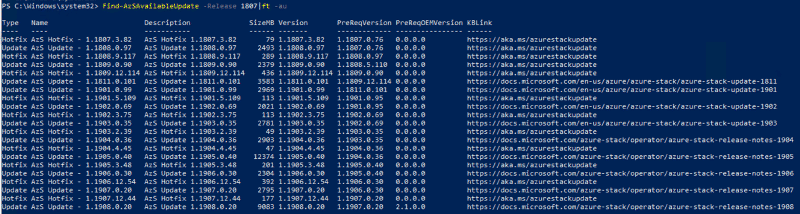
Find-AzSAvailableUpdate -Release 1807 | ft -au<This will look for all updates since AzureStack 1807 was originally released, and display them in a formatted table.
Find-AzSAvailableUpdate -Release 1907 -SimpleOutputThis will return the results as a simplified string, showing the update versions that need to be applied.

So how do you get this Powershell function? Github of course! This copy will be maintained with future improvements and fixes.
If you run into any issues, or just want to share how you’re making use of this function, leave a comment below