
As some of you would have seen, I spent some time last week getting familiar with Linux Containers on Windows Server 2019, and I thought I would share what I did to get it all up and running.
Prerequisites#
To get started, you’ll need to have the following in place:
- A Windows Server 2019 VM or Bare Metal host
- (VM-Only) Nested Virtualization enabled
- (VM-Only) MAC Address Spoofing enabled
- Hyper-V and Container Windows Features Enabled.
- You can install these from command line with
Install-WindowsFeature -Name Hyper-V,Containers -IncludeAllSubFeature -IncludeManagementTools
Install Docker EE#
Installing Docker involves 2 steps, installing the Package Provider that contains the latest version of Docker, and installing the Docker Package.
Installing the Package Provider is straight forward
Install-Module DockerMSFTProviderOnce that’s in place, we need to import the new module and the associated package provide
Import-Module -Name DockerMSFTProvider -Force
Import-Packageprovider -Name DockerMSFTProvider -Force
We can confirm this has worked by using Find-Package to see the new docker package is available
PS C:\> Find-Package docker
################################
# Expected Output
################################
Name                           Version          Source           Summary
----                           -------          ------           -------
Docker                         18.09.1          DockerDefault    Contains Docker EE for use with Windows Server.
Docker                         1.3.2            PSGallery        This module helps with development using Doc...
Now all that is left is to install Docker itself
Install-Package -Name Docker -Source DockerDefaultEnable Linux Container Support#
Now that we have Docker installed, we need to make some changes to the default configuration to enable support for Linux Containers.
This involves setting an Environment variable and creating a docker daemon configuration file.
# Set LCOW_SUPPORTED Variable to 1 for enabled
[Environment]::SetEnvironmentVariable("LCOW_SUPPORTED", "1", "Machine")

# Enable Experimental Features in Dockerd daemon.conf
$configfile = @"
{
    "experimental": true
}
"@
$configfile | Out-File -FilePath C:\ProgramData\docker\config\daemon.json -Encoding ascii -Force
Because Linux Containers still need a Linux kernel, we need to deploy LCOW for it to run.
You should use the latest LCOW release here
Invoke-WebRequest -Uri "https://github.com/linuxkit/lcow/releases/download/v4.14.35-v0.3.9/release.zip" -UseBasicParsing -OutFile release.zip
Expand-Archive release.zip -DestinationPath "$Env:ProgramFiles\Linux Containers\."
And all that’s left to do now is restart the server for everything to apply.
Deploy a Linux Container#
You may be wondering why I’ve got a section for actually deploying a container, as surely it will ‘just work’ now everything is setup, and that’s true, but because we now can deploy either Windows or Linux containers, we need to specify which we want.
This is done with an additional switch, --platform
Personally I like to use ubuntu as a quick test container
docker run --rm -it --platform=linux ubuntu bash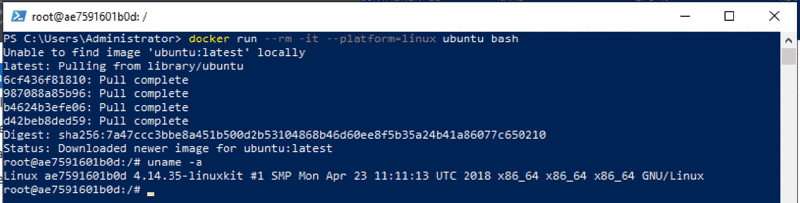
Now if you’re like me and planning on deploying mostly Linux Containers, you probably don’t want to specify the --platform parameter every time you start a container.
Luckily the default platform can be changes to Linux with another Environment variable.
[Environment]::SetEnvironmentVariable("LCOW_API_PLATFORM_IF_OMITTED", "linux", "Machine")(Optional) Install Docker Compose#
Now if you’ve been dealing with Docker on Linux for a while, you’ll probably be used to using Docker-Compose. Good news is it’s available for Windows Server as well, and is just as easy to deploy.
$dockerComposeVersion = "1.23.2"
Invoke-WebRequest "https://github.com/docker/compose/releases/download/$dockerComposeVersion/docker-compose-Windows-x86_64.exe" -UseBasicParsing -OutFile $Env:ProgramFiles\docker\docker-compose.exe
(Optional) Enable Remote Management of Docker Engine#
To enable access to the docker engine from other machines, such as your local workstation or a portainer deployment, we need to add a hosts entry to the Dockerd daemon.json file.
In our setup, we can do this with an easy find and replace.
# New host entry to add
$RemoteAccess = @"
{
    "hosts": ["tcp://0.0.0.0:2375", "npipe://"],
"@
# Get Existing Config
$Config = Get-content C:\ProgramData\docker\config\daemon.json
# Insert our host entry into the beginning of the file and write the changes back.
$Config.Replace("{",$RemoteAccess)|Out-File -FilePath C:\ProgramData\docker\config\daemon.json -Encoding ascii -Force
# Restart the docker service to apply the changes
Restart-Service Docker
As always, I hope this was helpful to someone else out there looking to experiment with the latest and greatest from Microsoft.